Start in a browser, download the desktop app, or write inside VS Code. Use the CLI and
MCP server for repeatable document work, and explore the iOS and Android preview. Every
option keeps readable Markdown at the center.
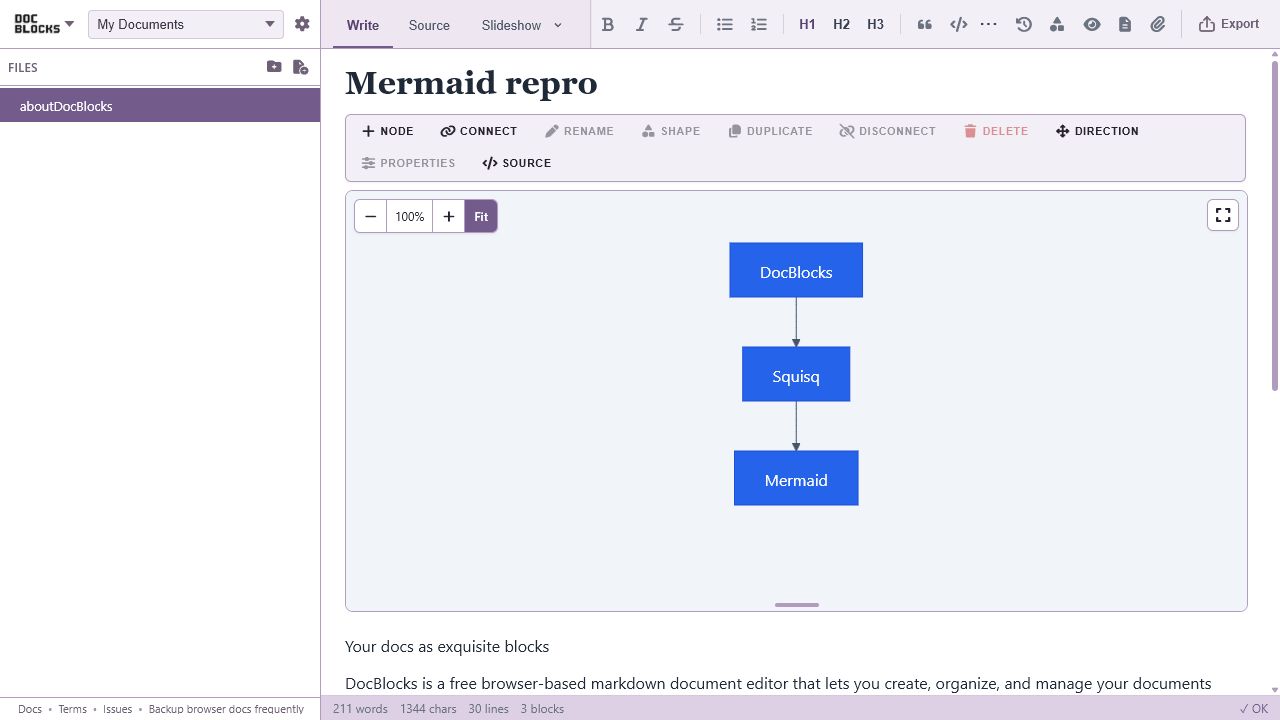
One Markdown document, with the file pane and editing tools shared by the web and
desktop experiences.
The DocBlocks apps
Start where you work.
Choose by where you keep your files and how you like to write. The installed web app
uses browser storage; the desktop and mobile apps have their own storage and native file
access. Workspaces do not automatically sync between them.
Web app
For a quick start on any device. Open the editor with no account.
Keep work in this browser or open a folder in a supported browser. Choose
Install DocBlocks… in the app menu when offered to launch it from
your desktop. Offline editing is ready once the app finishes downloading.
For everyday work in your own folders. Download for macOS (Apple
silicon), Windows, or Linux, then choose Open a folder. Get native
menus and file opening, plus optional AI assistance, dictation, and read aloud where
supported.
For iPhone, iPad, and Android. Native apps are in development; store
distribution is pending. Preview builds offer an On this device
workspace, picked folders, import, export, and system sharing. Use the web app on your
phone or tablet today.
For documents beside your code. Install the extension and open a
Markdown file. If needed, right-click the file and choose
Open in DocBlocks. Keep VS Code’s explorer, tabs, saving, and
source control while editing visually.
For terminal and build workflows. Install
@bendyline/docblocks-cli with npm, then run
docblocks --help. Build HTML, preview locally, convert files, and render
video using repeatable commands.
For document work with an agent. Connect the local MCP server
included in the CLI. Let your agent convert, inspect, or preview documents, then save
the resulting artifacts. File access is limited to roots you explicitly allow.
The web and desktop apps share these first steps. In a fresh default workspace, open
aboutDocBlocks.md for the built-in tutorial. In VS Code, create or open
a Markdown file in the Explorer, then follow the same writing workflow.
1. Create or open
Choose New file in the file pane, or New document on
the welcome screen. Name it my-first-document.md. Add a heading and a few
sentences in Write, then switch to Source
to see the same document as Markdown.
Edits save automatically in web and desktop workspaces; check any save or conflict
message. Browser storage belongs to this browser profile. Follow the
Backup browser docs frequently reminder and use
Download all workspaces in the app menu. For native folders, use your
usual file backup tools.
3. Export or share
Preview your document as a Document, Page, Slideshow, or Video, then open
Export and share. Choose a format and save the result. A share link
embeds a snapshot of the document in the URL; anyone with the link can read that copy,
and later edits do not update it.
Installing another DocBlocks app does not move your existing workspaces. Choose a shared
folder or make an explicit copy to continue elsewhere.
From the browser
Export Markdown with its media, or a DBK bundle that keeps documents and media
together, then open it in another DocBlocks app. Keep a separate backup before
clearing browser data. Installing the web app continues to use its browser profile.
Between Desktop and VS Code
Open the same folder in either app. Your Markdown and relative media links travel
together. If two apps edit a document, resolve any external-change conflict before
continuing. File sync, when wanted, comes from your own folder or backup service.
In a mobile preview
Use a picked folder or export and share files through the system controls.
On this device storage is private to the app and is removed on
uninstall. Opening a Markdown file from another app imports a copy; it does not
automatically update the original.
DocBlocks keeps failures visible instead of silently treating storage, permissions, or
conversion errors as success. Start with the message on screen, then use the matching
recovery path below.
A site page opens the editor
Apply the visible DocBlocks update and reload once. The corrected service worker keeps
the editor at the site root while product, documentation, privacy, and terms pages use
their own routes.
A document will not save
Keep the tab open. Check the storage or conflict banner, free browser space when
requested, and choose a conflict branch explicitly. Download all workspaces before
clearing site data.
An export fails
The export dialog remains open with the failure detail. Check unreadable images,
destination permission, and available storage, then retry. A failed export never
reports success or replaces an existing destination silently.
Include the version when asking for help.
Open About DocBlocks to find the version and delivery surface.
Include that value, your browser or operating system, and the smallest reproducible
document when reporting a problem.